IPTV for IBO Player: Compatible Services and Setup
A viewer can install a media player for IPTV for IBO Player and still have nothing to watch if no playlist is available. That gap can turn a promising entertainment setup into an empty screen, especially when a separate subscription costs money. An M3U playlist is a file or URL that lists media streams for a player to load. The player handles playback, while an IPTV provider supplies the content and must have the right to offer it.
For viewers in the UK, two checks belong before any payment: whether the device suits the app, and whether the service may legally provide its programs. A working app does not grant viewing rights, and a paid service does not prove those rights either. This page helps readers distinguish useful compatibility from a content claim that needs closer attention. Set up the key distinction between a player and an IPTV service before explaining what a compatible service must provide.
What Does IPTV for IBO Player Include?
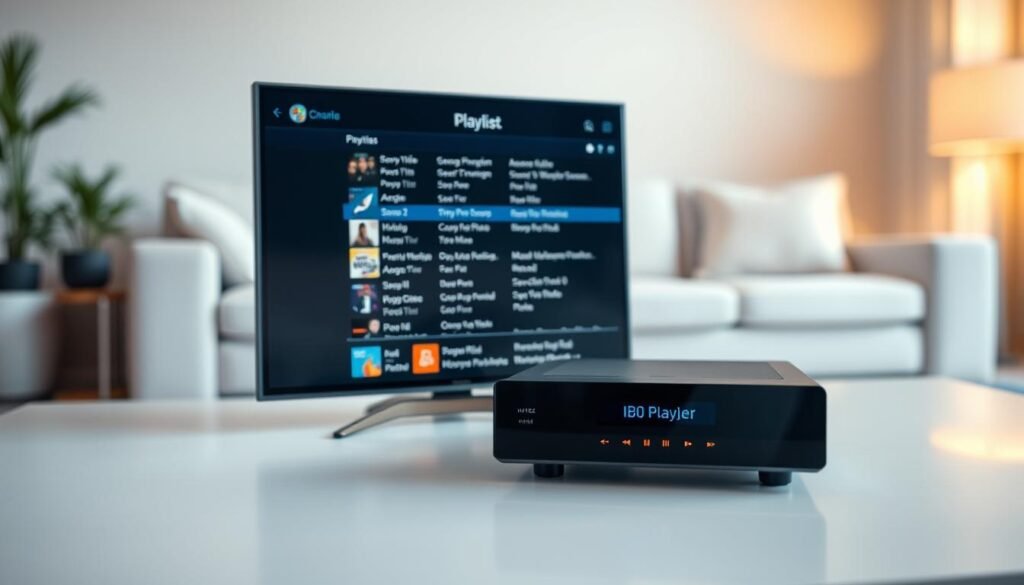
IBO Player is a media player, not a subscription that arrives with channels. Viewers need a separate IPTV provider and a compatible playlist to load content into the app.
The app plays content but does not supply it
An M3U playlist is a file or URL that lists media streams for a player to load. An IBO Player playlist comes from an IPTV provider or another authorized source, not from the app itself. The player does not include channels, a subscription, or a built-in catalog of movies.
The app also has no integrated EPG, or electronic program guide. An EPG-ready provider can supply guide data that works with the platform. That data can display program schedules, but it does not change who provides the streams or whether the provider has permission to distribute them.
What a compatible service needs to provide
A compatible service must provide a playlist or stream in a format the app supports. The IPTV provider should explain how to access the playlist, what content it includes, and any limits on its use. A playlist that is unreadable, inactive, or restricted will not create viewing access simply because it was sold.
Searches for free IPTV for IBO Player or a free IBO Player playlist do not guarantee lawful content or a working format. Free streams can be useful when they are authorized and compatible, but the word “free” proves neither point. Check these details before paying for app activation. A common mistake is buying activation first, then discovering there is no working playlist to load. Move from what the app can play to whether the viewer’s device can run the relevant edition.
Which Devices Support IBO Player Pro?
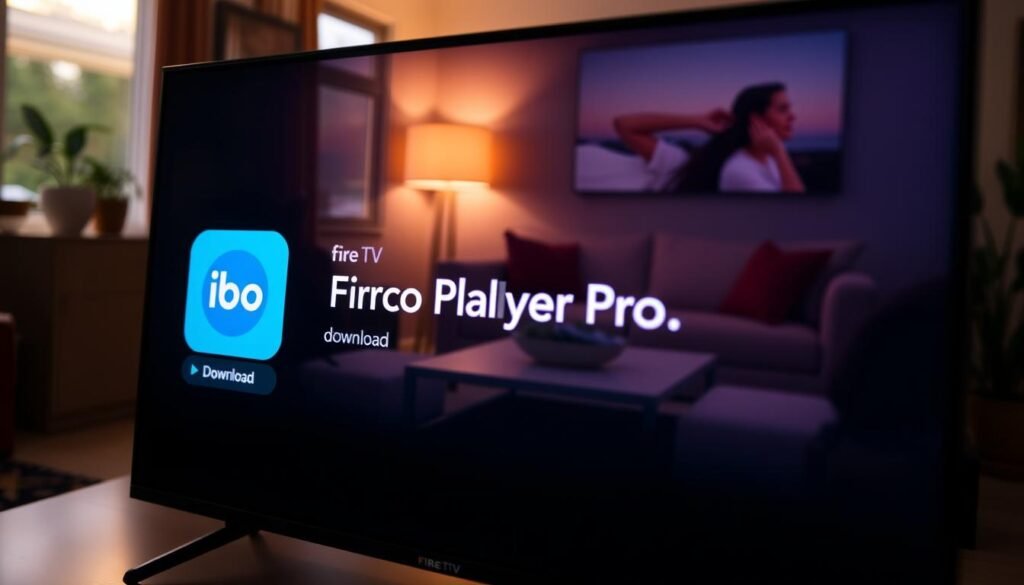
A Fire TV, Android TV, Samsung TV, or Windows device may have a different installation route, so check its exact listing first. Ibo Player Pro is listed for Android TV and Amazon Fire TV, with downloads also identified for Samsung TV, Windows desktop, and ZEASN/Whale OS.
Check the app listing for the exact device
Availability can differ by model, operating system, and region. Search the device’s official app store or the app’s official download information for the precise model. A listing for one television does not promise support for every television from the same brand.
An IBO Player download installs playback software. It is not an IPTV subscription, a playlist, or proof that any content source is authorized. Confirm the edition’s listing before installing, since the available option and instructions can vary by device and location.
Understand what an APK can and cannot do
An APK is an Android application package, the file format used to install many Android apps. The terms IBO Player APK and Ibo Player Pro APK refer to Android package files, not to video playlists or channel packages.
Use an APK only when it comes from a trustworthy official source. An unofficial file can expose a device to security risks, and an APK does not make an unsupported model compatible. It also cannot ensure the player supports screen resolutions offered by a particular stream.
Even if a product listing mentions resolutions, the device, app edition, and stream all affect playback. Check the exact app entry rather than assuming every model, system, or resolution is covered. Once the edition and installation route are confirmed, explain how to add a playlist and activate the app.
How Do You Download, Add a Playlist, and Activate the App?
The safest order is to confirm the playlist works before completing any paid activation. Activation enables use of the player; it does not supply channels, streams, or viewing rights.
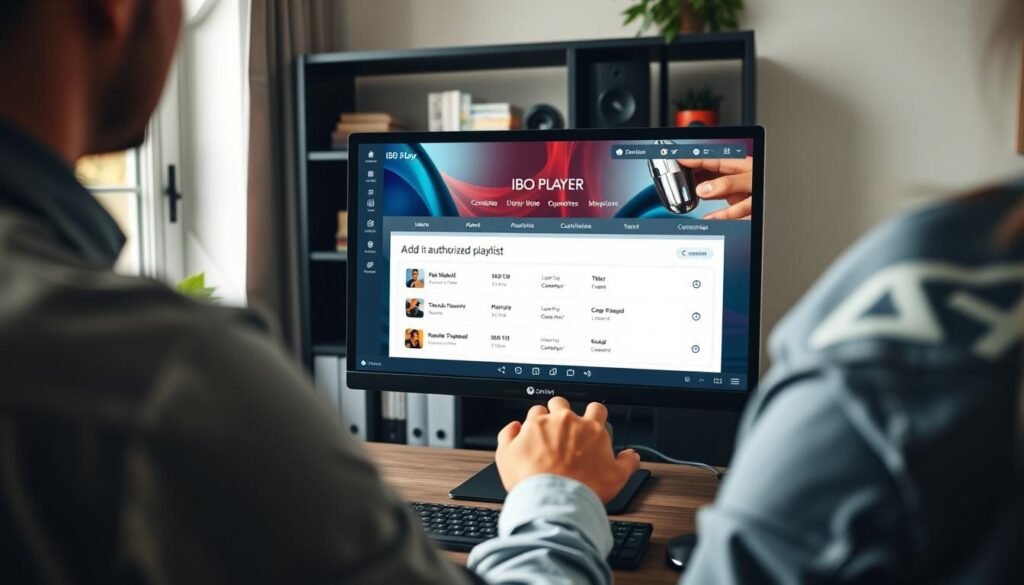
Follow the instructions shown for the edition installed on the device. Ibo Player Pro has a one-week trial, and activation is required after the trial expires. Other editions or platforms can show different terms, so avoid assuming that one trial or price applies everywhere.
- Install the appropriate edition using the official app store or download route for the device.
- Open the app and note any device identifier or key displayed on screen. Keep it private and enter it only in the official setup flow.
- Add the playlist through the app or its management portal, if that option is available for the edition.
- Test the playlist, then activate using the instructions shown for that edition.
Test more than one stream if the IPTV provider offers several types of content. A single working channel does not show that every stream or program guide will load correctly. The playlist should be present and usable before a payment is made.
The app’s stated terms say payment is not refunded when activation is purchased without a playlist. For that reason, do not use activate as a substitute for checking content access. Activation price and terms depend on the edition and platform, so check the current activation screen before paying.
Once activated, keep a record of the terms displayed at checkout. With setup complete, distinguish a failed playlist or unsupported stream from an app or connection problem.
Why Can an IBO Player Playlist Fail to Load?
A playlist that works on a computer can still fail on a TV because the devices may use different formats or networks. The cause may be an inactive playlist, a network issue, or a limit in the television’s stream support.
Check the playlist and network first
Confirm with the IPTV provider that the playlist is active and not restricted. A provider can suspend access, limit connections, or set conditions for use. A player cannot restore access to a playlist that has expired or been blocked by its provider.
Test the internet connection on the same television. A connection problem can stop the app from starting or interrupt a stream after playback begins. A playlist working on a computer does not prove both devices use the same network or connection settings.
Switching between Wi-Fi and Ethernet can change which MAC address the app uses. A MAC address is a network identifier for a device or connection. After changing connection type, check that the app is using the relevant device identifier and that the provider recognizes it.
Check device and stream-format limits
Televisions can differ in the stream formats they support. A stream may work in an advanced M3U player on a computer but fail on a TV that cannot handle that format. Player controls cannot make an unsupported stream format compatible.
Check the IPTV provider’s format details and compare them with the television’s capabilities. Do not assume that successful playback on one screen means the same playlist will work on another device. If the provider applies a network restriction, ask the provider to clarify or resolve it rather than trying to bypass it.
Freezing can also point to a weak connection or a stream that the device cannot process smoothly. Isolate the issue by testing the connection and checking the stream format, without treating every failure as an app fault. After ruling out technical limits, check that the provider has the rights and terms the viewer expects.
How Can You Verify an IPTV Service Is Legal and Suitable?
A compatible playlist only proves that the app can read it, not that the provider is authorized to offer its content. Viewers should use their own media, licensed providers, legally available free-to-air streams, or other content they are authorized to access.
In the UK, copyright protects creative works, and permission or a license may be needed to share or stream protected content. The University of Oxford’s copyright guidance explains copyright ownership, licensing, and exceptions. A claim that a service is “official” or “free” is not evidence that it has rights to every channel, movie, or sports stream.
Check the provider’s explanations before sharing payment details or loading its playlist. Use these four checks to assess the offer:
- Rights and content origin: look for clear information about who supplies the channels and how the provider is authorized to distribute them.
- Playlist and stream formats: confirm the service supplies a format the player can read, along with clear access instructions.
- Device or network restrictions: understand connection limits, supported devices, and any rules tied to a home network.
- Terms and support: review renewal, cancellation, privacy, and customer-support terms before paying.
Free-to-air public streams can be lawful when they are genuinely offered for public access. “Free” alone does not establish permission, and a long channel list does not establish content rights. Check whether the provider explains the source and lawful basis for its streams.
Suitability also depends on what the household wants to watch and how the service handles payment and personal information. A service that carries sports or movies may still have unclear renewal terms or no useful support. With the source checked, readers can decide which player features matter for their own viewing and household.
Which IBO Player Pro Features Affect Everyday Use?
The most useful features are the ones that match the viewer’s device, playlist, and household needs. Ibo Player Pro lists playback options and organization tools, but those features do not guarantee service quality.
Playback and display options
Advanced M3U player controls can affect how a playlist behaves during playback. The app lists built-in, MX, and VLC player options, giving users different ways to handle streams. Those options may be useful when a stream behaves differently with one playback mode.
IBO Player Pro is described as supporting screen resolutions that include 4K. Player Pro supports resolution options only when the stream, device, and screen can handle them. A 4K label does not improve a lower-quality stream or promise fast streaming without interruptions.
Compare the listed features with the device’s actual screen and the IPTV provider’s stream quality. M3U player controls can improve convenience, but they cannot add content or overcome a weak connection. The best option is the one that works reliably with the household’s own playlist.
Favorites, languages, and parental controls
Listed features include favorites for channels, movies, and series. Favorites can make a large playlist easier to browse without changing the content or rights attached to it. Language selection for movies and series can also help viewers choose available audio or language options.
Parental control tools can restrict access to selected content, which may help households manage what appears on screen. Check how a specific edition applies those controls before relying on them for a child’s profile or shared television.
Features can vary by platform and edition. Confirm whether the target listing includes the desired player pro supports screen options, favorite controls, and parental control features. End by directing readers to confirm their playlist, device listing, and activation terms before choosing to proceed.
Conclusion
IBO Player can be a suitable choice when the viewer already has authorized content and a compatible device. The app provides playback software rather than channels, so a lawful, working playlist remains essential. Device support and stream compatibility shape whether that playlist will play as expected.
Test the playlist and read the current activation terms before paying. A playlist that fails during testing can leave a paid activation with nothing to play. The next step is simple: check the device listing and test the playlist before activating the app.