IPTV Brazil: UK Setup, Legal Tips and Streaming Guide
For UK viewers seeking Brazilian television, IPTV can be practical when the service is authorized, compatible with their device, and clear about UK access. An IPTV player is an app used to play a compatible stream or channel list; the app itself does not grant viewing rights or provide channels.
Finding familiar programs from home can make a long evening feel more connected, but a poor choice can leave viewers with unusable access or an unexpected bill. A suitable player and internet connection can support a good streaming experience, provided the service works on the devices a household already owns.
Before paying, check the provider’s UK access, the programs included, and the terms for any subscription. A channel list can look convincing without explaining who has permission to distribute its content. Treat a channel list as a description of what a service advertises, not proof of permission to carry it.
What does IPTV Brazil mean for UK viewers?
IPTV describes how television reaches a viewer over the internet, while the player and the service supplying the programs are separate parts. IPTV Brasil may refer to Brazilian television delivered this way, but the label alone does not identify the content provider or its rights.
Live television follows a schedule, while video on demand (VOD) lets viewers choose a program or movie to play. Both can use IPTV technology, though a service may offer one, the other, or both.
IPTV technology and the role of a player
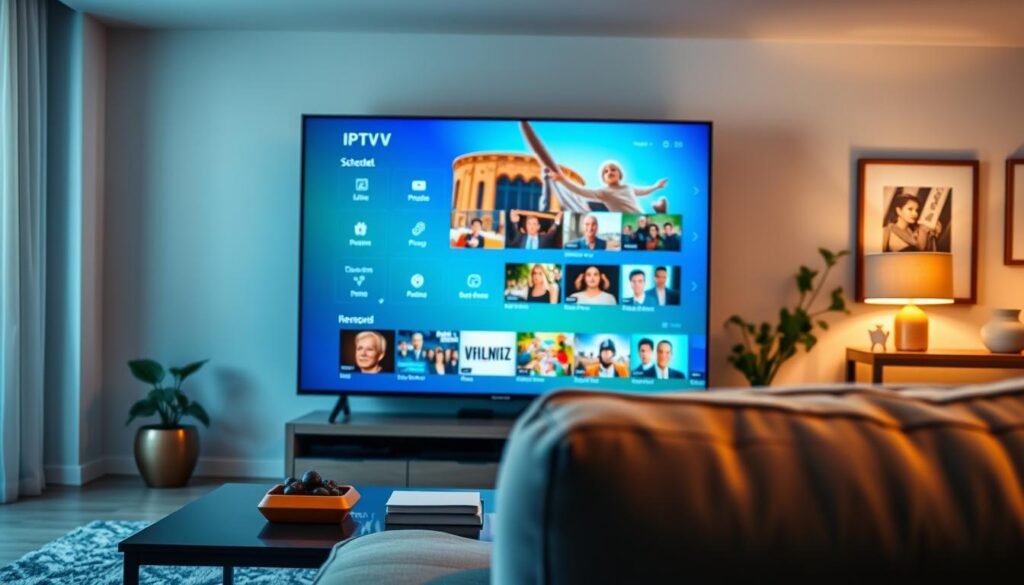
An IPTV player handles playback, menus, and sometimes an electronic program guide (EPG), which displays scheduled programs. It does not usually create the channel list or establish permission to show a program.
Think of the setup as three separate parts: the app, the playlist or login details, and the service that supplies the content. The app plays compatible information; the playlist points to streams; the service is responsible for the programs and distribution rights.
That distinction matters when a subscription promises many channels. A working playlist can display channels, but technical access is not proof that the service is authorized to carry them.
What IPTV Smarters Pro actually provides
IPTV Smarters Pro is a media player, not a channel provider. IPTV Smarters and IPTV Smarters Pro are player names; neither name proves that a particular subscription is authorized or includes any specific channels.
The player may accept compatible service details, then organize live television and VOD in its interface. What appears depends on the service and the information it supplies, not on the app name alone.
Before logging in, identify the company or organization supplying the programs and check what its subscription covers. Check the identity of the content provider separately from the name of the player on the device.
Is IPTV legal in the UK and Brazil?
A VPN is legal to use in the UK, but the legality of the stream still depends on the rights to the content. A VPN can protect a connection or change its apparent location, but it does not create broadcasting rights or make unlicensed streaming lawful.
UK VPN use is legal, with no general ban on using one. The separate question is whether the provider is authorized to distribute the channel or program to viewers in the UK.
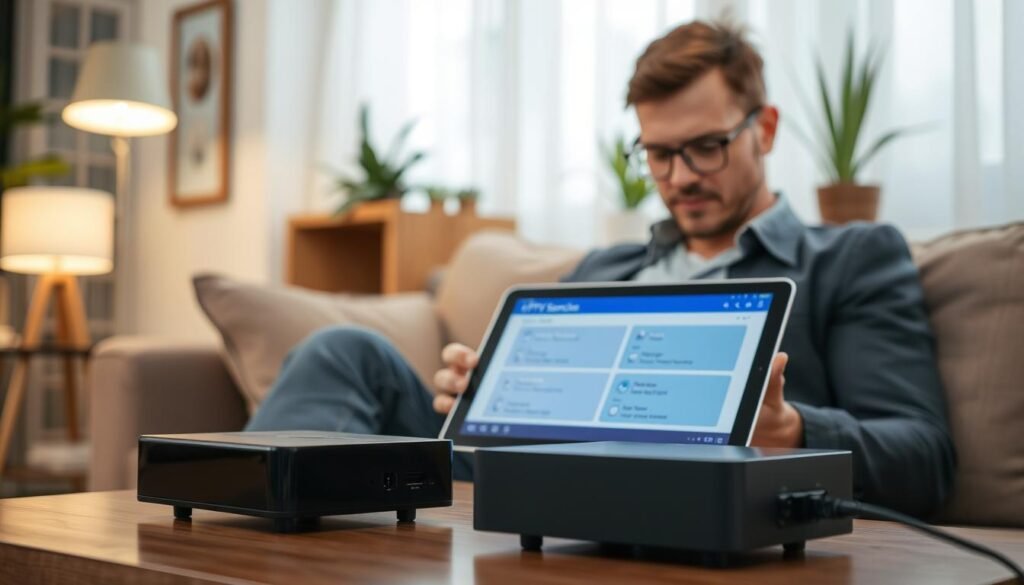
In Brazil, a TV box is not illegal simply because it uses IPTV. Equipment must meet applicable Anatel homologation requirements, so a TV box in Brazil should be checked for the relevant approval.
Anatel approval concerns the equipment, not the legality of every subscription or channel shown through it. A certified box can still access a service whose content rights are unclear, just as an unapproved device does not by itself prove that a particular stream is unauthorized.
Keep three checks separate before using a service:
- Device approval: Check Anatel homologation for equipment used in Brazil, where the requirement applies.
- App authenticity: Install a genuine app through a trusted route, not a file sent through an unsolicited message.
- Distribution rights: Identify the provider and determine whether it has permission to carry the content in the viewer’s country.
These checks address different risks: equipment compliance, software safety, and content authorization. A VPN changes neither a box’s approval status nor the rights attached to a program.
If the provider cannot identify who authorizes its channels, do not treat a VPN or certified box as a substitute for that answer.
Which legal Brazilian TV options can UK viewers check?
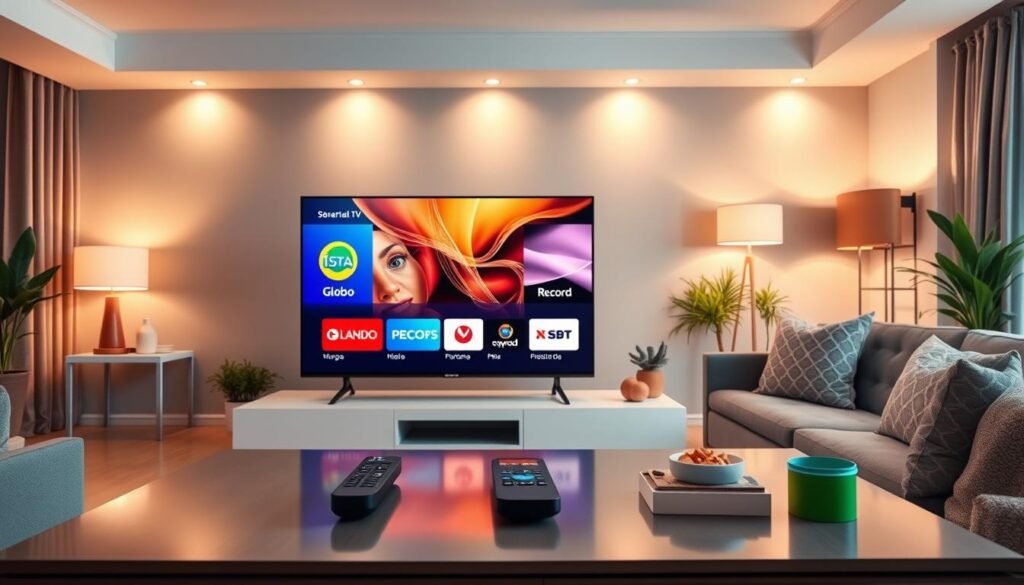
UK viewers can start with official streaming apps, but must check whether each one’s catalog is available in their country. A Brazilian TV app is useful only if it can be accessed in the UK and carries the desired programs there.
Free services can offer live channels, movies, or international channels, but their catalogs differ by location and can change. IPTV Brasil channels are not interchangeable with the licensed channels carried by these platforms.
Free, ad-supported services
Pluto TV is free and ad-supported, with access through Android, iOS, smart TVs, and the web. The app’s availability does not mean every Brazilian program appears in its UK catalog.
Soul TV offers more than 100 channels and is available in nearly 200 countries. Plex TV offers more than 80 thematic live channels. Viewers should still check each service’s current UK selection before choosing it for Brazilian channels.
Rlaxx TV offers more than 25 channels and is available in Brazil. Its availability there does not establish that the same lineup is available to UK viewers.
TV platforms tied to particular devices
Samsung TV Plus offers around 50 channels on Samsung smart TVs launched from 2017 onward. LG Channels requires WebOS 4.5 or higher. These device-linked services can be convenient, but their catalogs and regional access are not guaranteed to match.
For a specific sports event, the BBC carried Scotland v Brazil live on BBC One and BBC iPlayer on 24 June 2026, with kick-off at 11 p.m. BST. The BBC’s 2026 World Cup coverage included 54 of 104 matches live on television and coverage of all 104 across its digital platforms.
That dated match is an example of an official route for one event, not a promise about future fixtures. Confirm the app’s current UK catalog before relying on it for a particular Brazilian program or event.
How can viewers compare an IPTV service before paying?
A useful comparison starts with the exact programs and devices a household needs, not the largest advertised channel total. The best IPTV choice is the service that can confirm the desired content and provide usable features on the screens people actually watch.
An EPG is an electronic program guide that shows scheduled programs, making it easier to find live channels. VOD is separate: viewers choose a title instead of following a live schedule. Movies, series, language options, and sports rights can vary by plan.
Use this five-point comparison checklist:
- Content: Confirm the actual Brazilian channels, sports rights, movies, and series included.
- Language: Check whether commentary, subtitles, and menus suit the household.
- Devices: Confirm support for each television, phone, or streaming device in use.
- Screens: Check the number of simultaneous streams allowed on the selected plan.
- Support: Find a working contact route and learn how the provider handles playback questions.
A free trial can help test the interface and streams, but only when its duration, payment requirement, and cancellation terms are clear. A trial that needs payment details may turn into a charge if it does not end automatically.
Viewers comparing service features can also use this IPTV service comparison checklist for questions about lineups, screens, EPG, VOD, and support. Its provider examples and pricing are US-specific, so the criteria are more useful than those offers.
Best value means verified content and features that work for the household, not a headline count of thousands of channels. Ask the provider to confirm the specific channels and screens included in the chosen plan before submitting payment.
How do you install IPTV Smarters Pro on a Fire TV Stick?
On a compatible Fire TV Stick, IPTV Smarters Pro setup uses the Downloader app and a verified APK rather than a channel subscription built into the player. An IPTV Brazil APK is an Android application package, while an IPTV Brazil download should come from a route the app developer or service provider can verify.
Installation and service access are separate: the APK installs the player, while the chosen service supplies login details. Setup may take only a few minutes, but the time depends on the device’s menus and the download connection.
Finding a safe IPTV Brazil APK download
Use a download route that the app developer or service provider can confirm. Do not rely on unofficial APK mirrors or assume a file is safe because a search result labels it as an IPTV Brazil download.
Install Downloader from the Fire TV Stick’s app store, then follow the verified route to the APK. Avoid unsolicited links sent by message or email, and do not share service login credentials with anyone offering to install the app.
Fire Stick menus can change with software updates, so follow the device’s current instructions for allowing an app installation. Enable only the permission needed to install the verified file, then turn that permission off when setup is complete.
Adding the player and entering service details
Open Downloader and enter the trusted APK location supplied through the verified route. Review the app name and requested access before installing. If the file or publisher details do not match what the provider or developer confirmed, stop.
After installation, open IPTV Smarters Pro and select the login method supported by the service. A provider may supply an M3U URL, which connects the player to a compatible playlist, or Xtream Codes login details.
Enter only the details given through the service’s own account process. The player does not include a subscription, and installing it does not create channel access. Keep credentials private, especially on a shared Fire TV Stick.
If a login fails, check for typing errors and confirm the selected login method matches the details supplied. A valid app installation does not fix an expired account or a playlist the service has disabled.
Revoke installation permission for unknown apps after setup if it is no longer needed.
What device and internet setup supports reliable streaming?
The Fire TV Stick 4K Plus supports modern 4K formats, but the router, service feed, and display must also support the desired quality. An Amazon Fire TV Stick can act as an IPTV box when a compatible player is installed, but it is not itself a channel service.
The device supports 4K Ultra HD, Dolby Vision, HDR10+, Dolby Atmos, and Wi-Fi 6. Its specifications include 8 GB of storage, a quad-core 1.7 GHz processor, and a weight of 43.5 grams.
Choosing an Amazon Fire TV Stick or another TV box
The Fire TV Stick 4K Plus measures 99 by 30 by 14 millimeters, or 108 by 30 by 14 millimeters including the connector. Those details describe the device, not the quality or rights of any stream played through it.
Wi-Fi 6 requires a compatible Wi-Fi 6 router. The stick also works with earlier Wi-Fi routers, so an older router does not automatically make the device unusable.
A Brazil TV box activation code is app- or provider-specific, not a universal code for IPTV. Use only a code shown through the official app or the provider’s own activation process.
Matching picture quality to the home connection
For 4K IPTV streaming, 25 Mbps is given as a minimum, while 40 Mbps or more is recommended for consistent quality with HDR. These figures are guidance, not a promise that streams will never pause.
Quality also depends on the service feed, household internet use, Wi-Fi conditions, and the screen’s supported formats. A speed test taken beside the router may not reflect the connection reaching a television in another room.
For live sports or other demanding streams, device compatibility and the route from the router matter alongside the advertised internet speed. This live sports streaming advice also discusses device support and connection planning.
Test the connection on the device and at the time of day the household usually watches.
How can viewers test quality and troubleshoot buffering?
A brief, repeatable test can show whether buffering follows the home network, the player, or one particular stream. Test a live channel and an on-demand title separately, since a fault affecting one type may not affect the other.
Keep the same device and viewing location during each test. Note whether the picture pauses, drops in quality, or displays an error, and whether other household devices have trouble online at the same time.
Work through this troubleshooting checklist:
- Check the router-to-device Wi-Fi path, including distance, walls, and router placement.
- Try a wired Ethernet connection where practical; it bypasses the wireless link.
- Update the player, then restart the streaming device and router if playback still fails.
- Test the same stream on another supported device to see whether the fault follows the stream.
Five-gigahertz Wi-Fi typically has a shorter range than 2.4-gigahertz Wi-Fi. A clean Ethernet test can help isolate a wireless problem, while a failure on both connections points elsewhere.
A UK broadband problem can affect several devices at once. The uSwitch broadband outage guide recommends checking for household-wide problems, restarting the router, and looking for provider outages.
When a problem remains, contact support with the channel, device, time, and error details. Ask the provider to investigate that specific stream rather than relying on a blanket promise of stability or zero buffering.
Record the channel and viewing time when reporting a fault so support can investigate the same failure.
What should UK viewers check before a subscription renews?
Before a subscription renews, check whether the next payment is automatic and how the provider requires cancellation. A one-time payment covers a single purchase, while recurring billing charges again at set intervals unless the subscription ends under its terms.
Check the renewal date, currency, number of screens, cancellation method, refund wording, and a working support contact route. Save the terms shown when signing up, since they may explain how a change affects access to a content library.
Before renewal, ask these questions:
- What date and amount will the next charge use, and in which currency?
- Does the plan renew automatically, and how many screens can play at once?
- How must cancellation be submitted, and when does access end?
- What does the refund language say if a charge or access problem occurs?
- How can support be reached if the account or billing details are wrong?
A free trial does not automatically cancel unless the provider’s terms say it does. Check whether the trial converts to a paid plan, whether action is required, and when that action must happen.
The Consumer Rights Act 2015 covers UK consumer rights for digital content and services. UK online consumer contracts generally have a 14-day cancellation period, with an exception for digital content when access starts after the required consent and acknowledgment.
The Digital Markets, Competition and Consumers Act 2024 also includes subscription-contract provisions on pre-contract information, reminders, cancellation arrangements, and cooling-off rights. These rules are distinct from the Consumer Rights Act, and the applicable protections depend on the contract and service.
Save the plan terms and confirmation of cancellation or renewal in a form that can be retrieved later.
Conclusion
A dependable choice starts with clear rights, a verified app, and a connection that suits the desired picture quality. The player, content provider, device, and rights are separate checks, even when a single service advertises them together.
Start with one priority channel rather than a long plan built around a broad channel count. Check that channel’s UK availability and test it through an authorized route on a device already in the household.
That small test can reveal whether the picture, language, and controls meet everyday needs before a longer commitment. Check the channel’s availability and the provider’s terms, then try the authorized option on the device you plan to use.