IPTV 24 Hour Trial 2026: Test Premium TV Streaming Now
A 24-hour IPTV trial can help a viewer assess streaming on their own setup, but the label alone cannot confirm licensing, reliability, or billing terms. IPTV is television delivered over internet protocol networks rather than solely through traditional broadcast or cable. For UK streaming viewers, a short test can show how a service behaves on the device and internet connection they already use.
The practical value is seeing whether the picture holds up, controls respond, and the service works with a household’s device compatibility needs. A trial is not the same as a promise that every advertised feature will work. Its terms and the service itself still matter, even if the signup page uses the words “free” or “premium.”
This page sets out what viewers can reasonably test and which details deserve a closer look. Treat the trial as a test of a particular service, not as proof that its content is licensed or its long-term performance is assured.
What Does an IPTV 24 Hour Trial 2026 Include?
Trial listings commonly advertise access to live channels and VOD, but the exact lineup and playback quality depend on the written offer. Sports, films, and other programs may also be included, though each provider sets its own trial features.
Advertised trial duration is not standardized. Examples include 24-hour, 36-hour, and 72-hour offers, so viewers should not assume every free trial lasts one day.
What a trial may let viewers assess
A test can help a viewer evaluate whether channels open and whether the picture looks suitable on their screen. The IPTV guide updated October 11, 2026, says a trial can help users assess service quality before committing, without setting one standard trial length.
Some providers describe an offer as “full access,” but that wording does not guarantee every feature. A provider may restrict selected content or picture quality during a trial. A viewer should treat an advertised lineup as a claim to check, not as proof of working playback.
What a listing does not prove
Channel and VOD library counts show what a provider advertises, not what will play on a particular viewer’s device. A large figure cannot confirm that every live channel loads or that all VOD titles remain available.
Listings may also omit limits that affect the experience, such as trial-only restrictions or a smaller selection of sports. Compare the offer’s written details with the programs that matter most. Confirm that the specific channel or title a viewer cares about is available during the trial rather than relying on a headline count.
How Can You Check the Trial Terms Before Signing Up?
Before submitting a trial request, check whether it asks for a payment card and whether any paid renewal will happen automatically. A “free” label does not settle whether a credit card is required, how access ends, or what information the provider collects.

Read the terms beside the signup form, not only a promotional message. Check these points before sharing personal data:
- Whether the provider requests a credit card or other payment details.
- Whether trial access changes to a paid service, and when that change takes effect.
- How to cancel or stop renewal, including any deadline or confirmation process.
- Which contact details are required and how the provider says it uses them.
A card-free offer is not automatic, and some trials may ask for payment details. Do not send card information through an unsolicited message or an informal chat account. Use a clear signup process and keep a copy of the stated terms.
In the UK, the UK GDPR and Data Protection Act 2018 cover how personal data is handled. If the provider does not explain payment, cancellation, and data use clearly, do not submit sensitive details.
How Do You Set Up a Trial on a Streaming Device?
Setup usually requires a compatible player and the login details supplied for that specific trial. Services may support Firestick, Android TV, smart TVs, MAG devices, phones, tablets, and computers, but support differs by provider and device.
Some viewers use a streaming box connected to a television’s HDMI port. A guide to IPTV box features and hardware can help explain what those devices offer.
Install a compatible player from a trusted source
First check that the player works with both the device and the provider’s login method. Examples include IPTV Smarters, TiviMate, GSE Smart IPTV, Smart STB, and IBO Pro Player. These are examples, not endorsements, and availability varies by device and region.
Where possible, install the player from the device’s official app store. App names and store listings may differ across regions, so check the developer and app details before downloading. Avoid unofficial files offered through unfamiliar websites or messages.
Enter credentials and confirm playback
Follow these steps to connect the trial and check that the main areas open:
- Confirm that the device and selected player are compatible with the service.
- Install the player from the official app store where available.
- Enter the provider-issued M3U playlist details or Xtream Codes login.
- Open one channel, then check whether the EPG or VOD area loads.
M3U and Xtream Codes are different login formats. Use only the details issued for the trial, and contact the provider through its stated support channel if the login fails. Do not install an unfamiliar file or share login credentials publicly just to get a stream working.
What Should You Test During the 24 Hours?
A useful trial checks the programs a viewer actually watches, not only whether the first channel opens. A few focused checks can show whether the channels, schedule information, and VOD library suit regular viewing.
Use the same screen and viewing conditions the household normally relies on. A stream that works briefly on an unused device may not reflect evening use in a busy home.
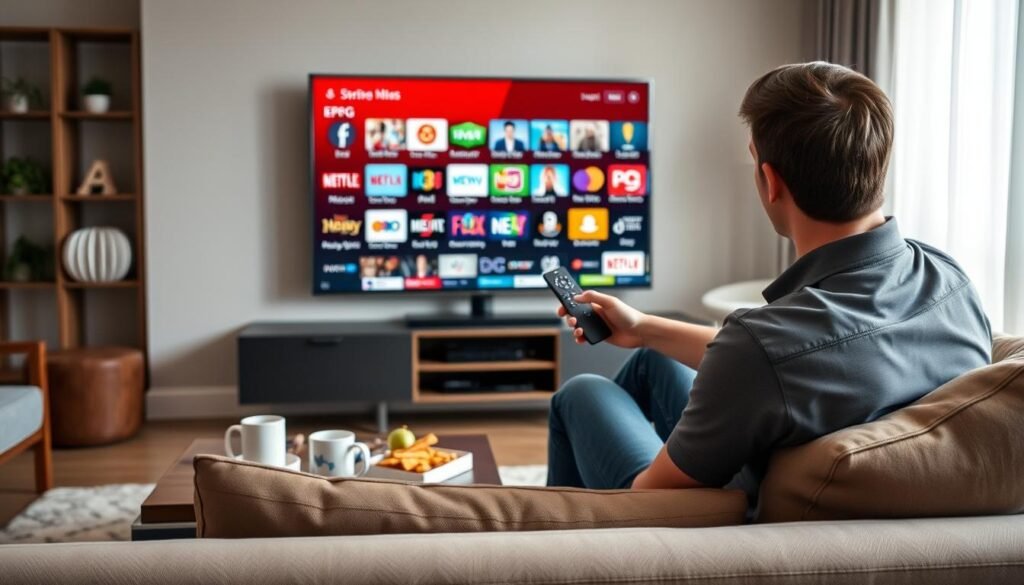
Check the channels, guide, and on-demand library
Try the channels and features that matter most, rather than spending the trial scrolling through a long list:
- Open favorite live channels, including regional news if it is part of regular viewing.
- Compare channel switching and note any buffering or long delays between programs.
- Check EPG listings, the electronic program guide, against the program actually playing.
- Search the VOD library for relevant films, series, or other specific titles.
- Test a second device only if the trial terms allow it.
An EPG can show whether schedule listings are present, but listings may not match what appears on screen. Check a program at its listed time, especially when the guide is a key reason for choosing the service.
Test playback under real viewing conditions
Try the most-used channels at a busy viewing time. Notice whether playback stays steady through a full program, not just the first few minutes. If a stream pauses, record which channel and time were involved.
Channel switching can reveal delays that a single uninterrupted program will not show. Repeating the same switch a few times can help distinguish one slow response from a recurring problem. Note whether the picture changes as expected after selecting a channel.
Do not assume that one successful screen proves a plan supports simultaneous viewing. The number of simultaneous device connections depends on the subscription plan, and some trials restrict use to one device. Test a second screen only when the offer permits it.
Keep notes on the channels that failed and whether the guide matched the live program. This makes the results more useful than a general impression after several hours of browsing. Test the most important channels during the hours they are normally watched, since a quiet daytime check may not reveal peak-time problems.
What Internet Speed and Devices Do You Need?
For one device, published streaming recommendations range from 3 Mbps for SD to 25 Mbps for 4K, while some IPTV guidance sets higher targets for lower resolutions. Uswitch’s 2026 per-device minimums are 3 Mbps for SD, 5 Mbps for HD, and 25 Mbps for 4K.
An IPTV guide updated October 11, 2026, recommends 5 Mbps for SD, 10 Mbps for HD, 15 Mbps for Full HD, and 25 Mbps or more for 4K. These figures are starting points, not promises of stable playback on every service.
Uswitch gives smart TVs a lower typical range of about 1.5-3 Mbps for SD and 5 Mbps for HD. Its minimums do not account for other household internet use or multiple screens. A phone, television, and game console sharing a connection can raise the total demand.
Wi-Fi conditions also affect streaming quality. Distance from the router, walls, and competing network use can weaken a stream even when a speed test looks strong. Uswitch recommends fibre broadband as a minimum for streaming and prefers full fibre where available.
To compare equipment options, see this guide to streaming boxes and their features. The box is only one part of the setup; the app, broadband, and service infrastructure also shape playback.
For wider context, the UK government’s audience assessment of future TV distribution reports that IPTV-only UK households rose from 1.3 million in 2018 to 4.3 million in 2023. Its forecast of 17.8 million by 2035 may overstate the pace of change.
4K IPTV needs a compatible 4K display, adequate internet, and strong provider infrastructure. A speed test can measure a connection, but it cannot prove that a service supplies genuine 4K. Leave extra capacity for other household use, because a per-device minimum is not a whole-home guarantee.
Is IPTV Safe and Legal to Use in the UK?
IPTV describes a way of delivering television over the internet, not proof that a particular stream is authorized. Internet-delivered television is not automatically unlawful, but access to content without the relevant rights can infringe copyright.
The Copyright, Designs and Patents Act 1988 is a central UK copyright law. Viewers should check who operates a service and whether it is authorized to distribute the channels it offers in the UK.

A large channel list, instant access, or a working stream does not establish content licensing. Ask whether the operator clearly explains its rights to the channels, films, or live sports it advertises. If those details are missing or vague, treat the claim with care.
Unverified app downloads can expose a device to security risks. Requests for payment or personal details through informal messages can also create fraud risks. Avoid sharing account or card information through a channel you cannot identify as belonging to the operator.
Licensed UK viewing options include BBC iPlayer, ITVX, Channel 4, Sky/NOW, TNT Sports, and Amazon Prime Video. Their content depends on each service’s terms and rights, so their catalogs are not identical. If a service cannot clearly explain its rights to the channels it offers, choose a licensed UK platform instead.
What Happens When the Trial Ends?
When trial access expires, the provider’s written terms determine whether credentials stop, a paid plan begins, or the account simply closes. A trial does not always cancel itself or convert automatically.
Save the terms shown at signup and any cancellation confirmation. If a recurring card payment needs to stop, Financial Conduct Authority guidance says the card issuer can cancel it. Canceling a payment does not by itself end a separate contract or other obligations.
Keep proof of any cancellation and check a later card statement for an unexpected charge.
Conclusion
A short trial is most useful when it tests the channels and devices a viewer relies on, under ordinary viewing conditions. Playback matters, but so do UK content licensing and clear payment terms.
Before requesting access, check that the provider explains its UK rights to distribute the content. Read the written renewal and expiry terms, and keep a record of what the offer promises. Before requesting access, verify the provider’s UK licensing information and read the payment and expiry terms.